

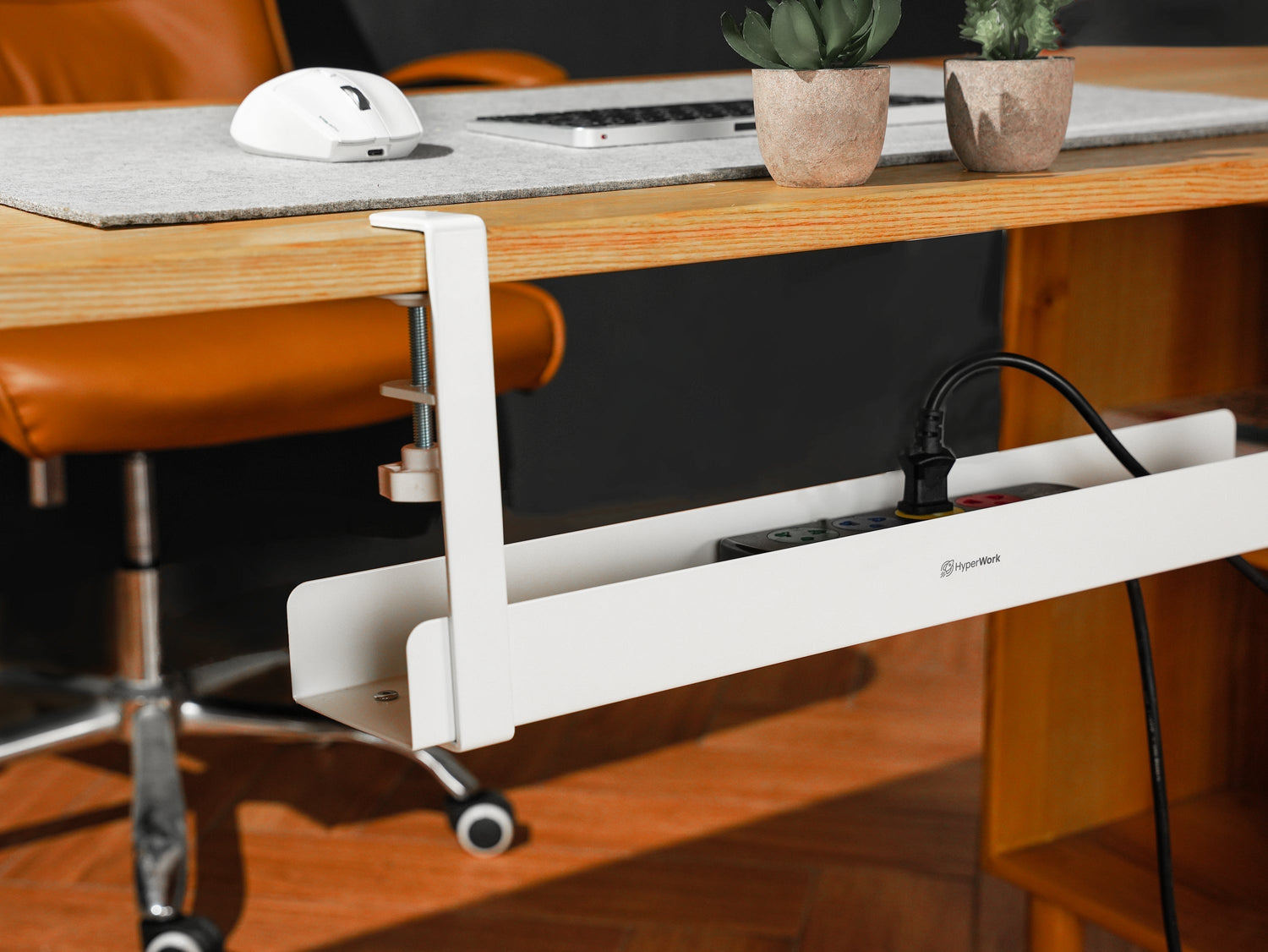
A basic workspace often includes many clusters of connecting cables, charging cables, and power strips. The more devices you have, the greater the number of corresponding cables and power outlets, which can lead to overload and cause clutter, or even damage. Cable management might seem like an advanced skill, but it's actually the first thing you need to do if you want to achieve a professional, minimalist setup that maximizes efficiency and functionality.

Types of Cables in a Setup
-
Power cables: For computers, monitors, speakers, lights, phone chargers.
-
Connection cables: HDMI, DisplayPort, USB, LAN.
-
Charging cables: USB-C, Lightning, Micro-USB.
Why is your workspace always messy with cables?
- Using many separate, peripheral devices
For example: Each peripheral device has one cable: secondary monitor, speakers, mouse, keyboard, lamp, webcam, phone charger, USB hub, mic… Tech enthusiasts, content creators, streamers, etc., the more devices, the more connecting cables.
- Not using integrated devices or not using wireless devices
For example: Not using a monitor with a built-in dock/hub (requires a separate hub); not using wireless mouse, keyboard; not using an all-in-one USB-C for laptops, requiring separate HDMI, charger, USB, etc.

- Separate power cables + signal cables
For example: One device might need 2-3 types of cables: e.g., power cable, jack, USB cable
- No cable management solution
For example: Not using cable trays, cable clips, cable sleeves, exposed, excess, overlapping cables. Or long excess cables not neatly coiled, scattered around. Or cables from devices on the desk extending to the floor, looking messy

- Setup expands over time
For example: Initially only a laptop, then adding items one by one (monitor, mic, PC,...) without planning from the start. Or simply, old cables are not removed, new cables are added on top, becoming increasingly cluttered.
Steps for Tidy Cable Management
Remove all cables
- Turn off and unplug all devices.
- Remove cables from the desk, categorize them by function (power, signal, charging).
Install an under-desk cable tray
- Choose a cable tray that suits your desk size, cable quantity, and desired cable management style. HyperWork is currently launching 3 models: CM01 (clamp-on), CM02 (magnetic), and CM03 (through-hole), suitable for different needs. For example, if you have many different types of cables, you can group them by threading or tying them through holes for easy control. If you only need to hide desk cables or fixed device charging cables, use CM02 with its magnetic adhesive design, which won't damage furniture but still ensures aesthetics. CM01 can be a lifesaver if you have a long power strip or basic cables, as it can be neatly placed in the compartment and clamped behind the desk.
- Attach the tray securely under the desk with screws or strong adhesive.

Secure power strips and adapters
- Attach power strips to the underside of the desk for easy device plugging.
- Use cable ties or holders to secure adapters, preventing them from dangling.
Arrange and secure cables
- Use cable ties, cable sleeves, or cable clips to bundle cables neatly. HyperWork suggests Velcro Tape, which is convenient, easy to cut-stick-adhere, helping long cables like network cables or large device cables avoid coiling and clumping.
- Tip: You can label each cable bundle for easy identification when there are too many similar cables or when needing to disconnect/reconnect.

Check and finalize
- Ensure all cables are securely fastened and not too tight or loose.
- Test the functionality of all devices after reorganizing the cables.



Leave a comment
This site is protected by hCaptcha and the hCaptcha Privacy Policy and Terms of Service apply.